


Owner Profiles, Tags & Stored Value
The Owner page is where you manage every client of the clinic — their contact details, tags, stored-value balance, outstanding bills, and the pets registered under their name. It also doubles as a quick checkout shortcut for owners with unpaid bills across multiple visits.
How to access
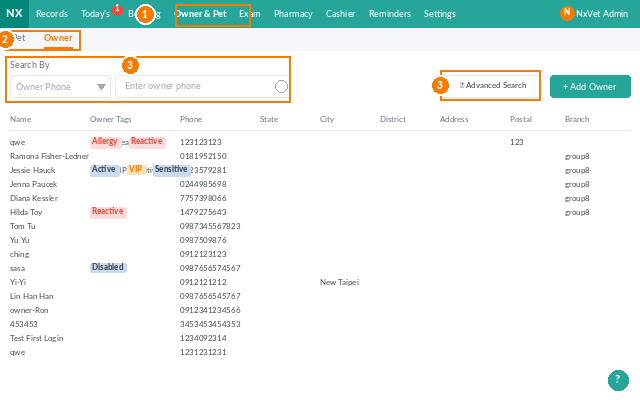
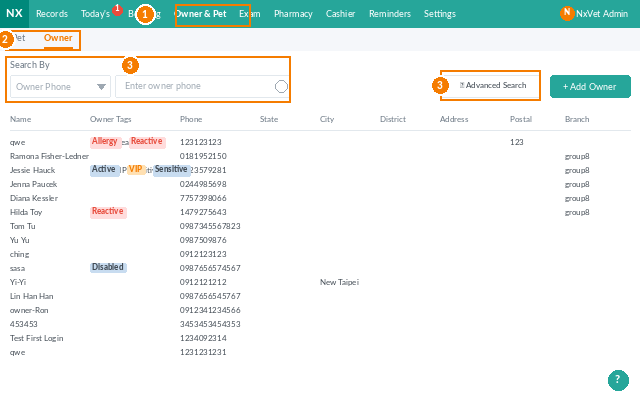
- From the main menu, click Owner & Pet.
- Click the Owner tab.
- Use the search bar to find an owner by name or phone, or click Add Owner to create a new one.
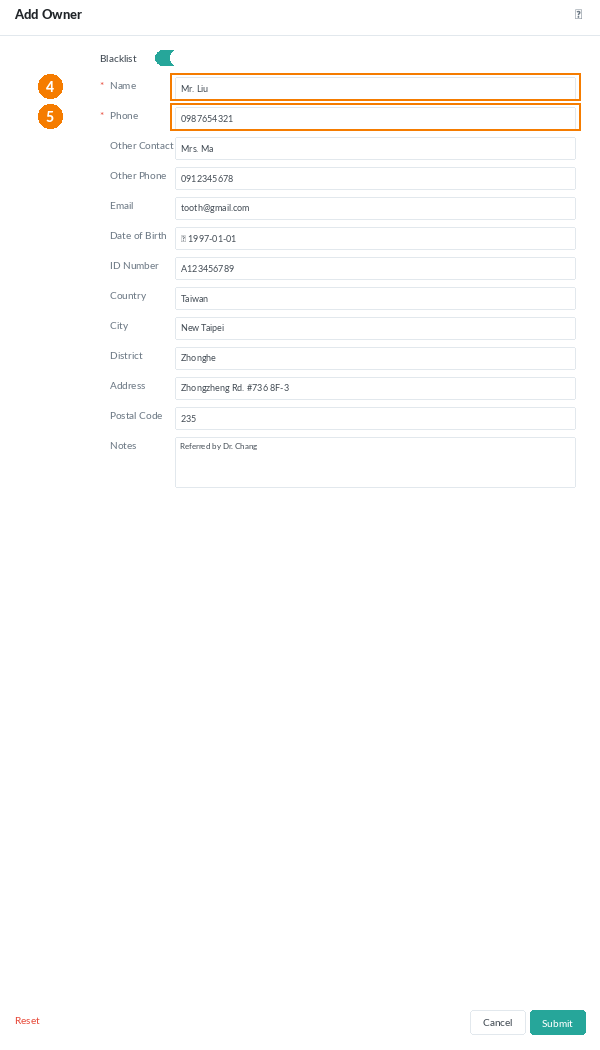
Adding a new owner
- Click Add Owner.
- Fill in the required fields:
- Name — can be a nickname or however the clinic identifies them; no need for a legal name.
- Phone — used for contact and LINE@/SMS notifications.
- Optional fields worth filling: email, date of birth, ID card, country, city, district, address, postal code, and any other contacts or phone numbers.
- Toggle Blacklist if the clinic needs to flag this customer.
- Click Confirm.
Searching for owners
Two search modes are available:
- Basic search — pet name, medical record number, owner name, or owner phone.
- Advanced search — any combination of name, phone, email, ID card, city, district, address, tags, remarks, pet name, or medical record number. Uses fuzzy matching.
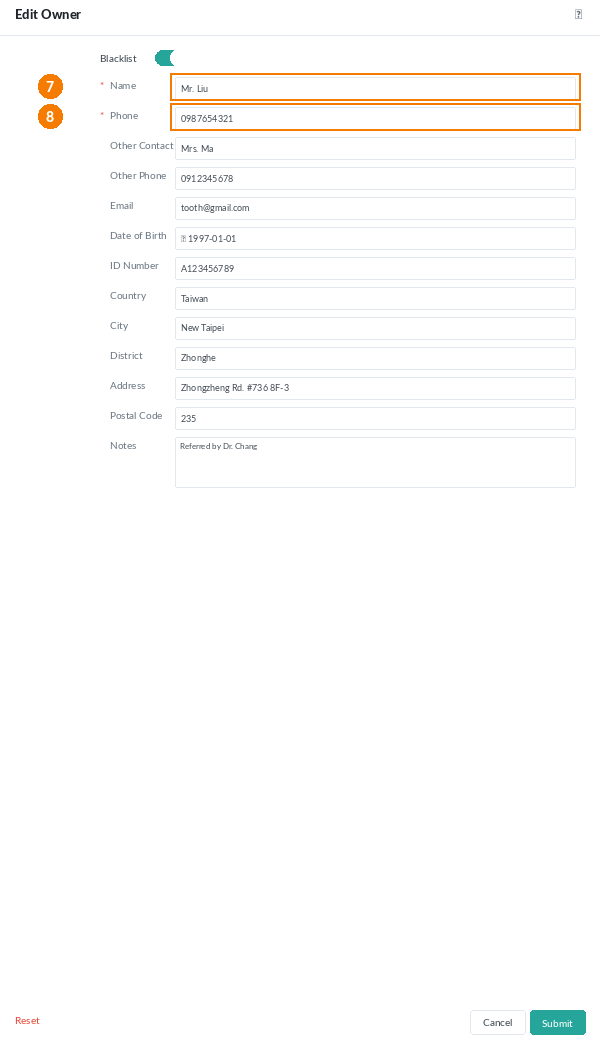
Editing or deleting an owner
- Open the owner profile and switch to the Owner data tab.
- Edit — click Edit, update fields, click Confirm.
- Delete — click Delete, type
DELETEin the confirmation box, click Confirm. This is permanent.
Adding and removing tags
Tags are a clinic-defined classification system for customer segmentation (VIP, allergy alert, repeat no-show, etc.).
- From the owner profile, click Add Tag.
- Pick a category, then a sub-category, then the specific tag.
- Click Save.
- To remove a tag, click the
xbeside it in the tag list.
Categories, sub-categories, and tags themselves are fully customizable in Settings.
Payment records
The Payment Records tab on the owner profile gives a complete financial picture:
- Stored value — remaining prepaid balance. Click the blue amount to see every top-up transaction.
- Over/Under amount — outstanding balances for each pet under this owner.
- Bills — unpaid, partially paid, or overdue bills. Filter by time period and click any bill to settle.
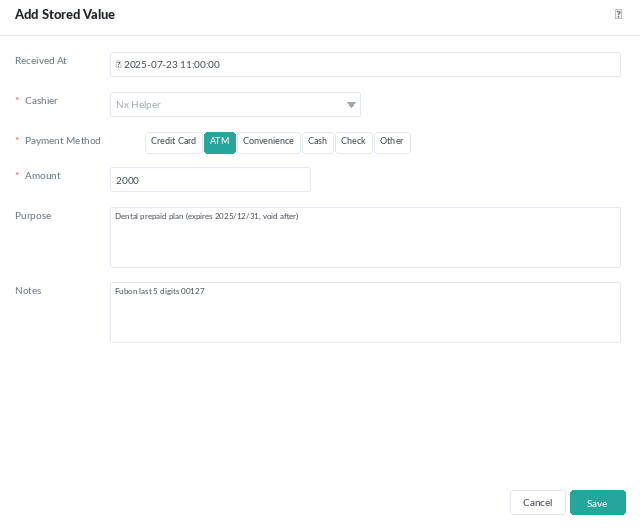
Adding stored value (top-up)
- On the Payment Records tab, click + Stored Value.
- Fill in the required fields: Recipient (collecting staff), Payment method (cash, credit card, ATM, convenience store, check, mobile pay), and Amount.
- Optional: collection time, purpose (e.g., promo bonus, dedicated treatment), and remarks (e.g., last 5 digits of card).
- Click Confirm. The balance updates immediately.
Pets under the owner
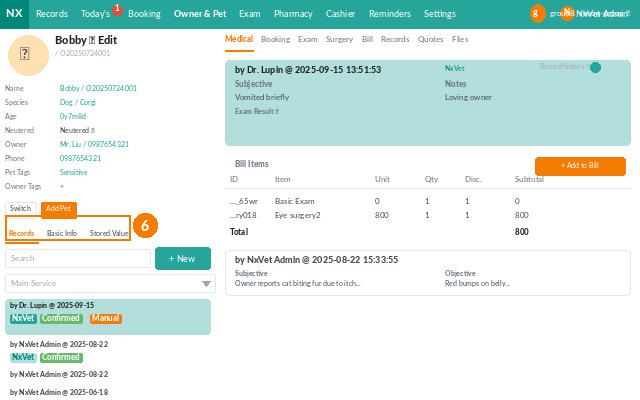
- The right panel of the owner profile lists every pet registered under this owner.
- Click a pet to jump to its medical record.
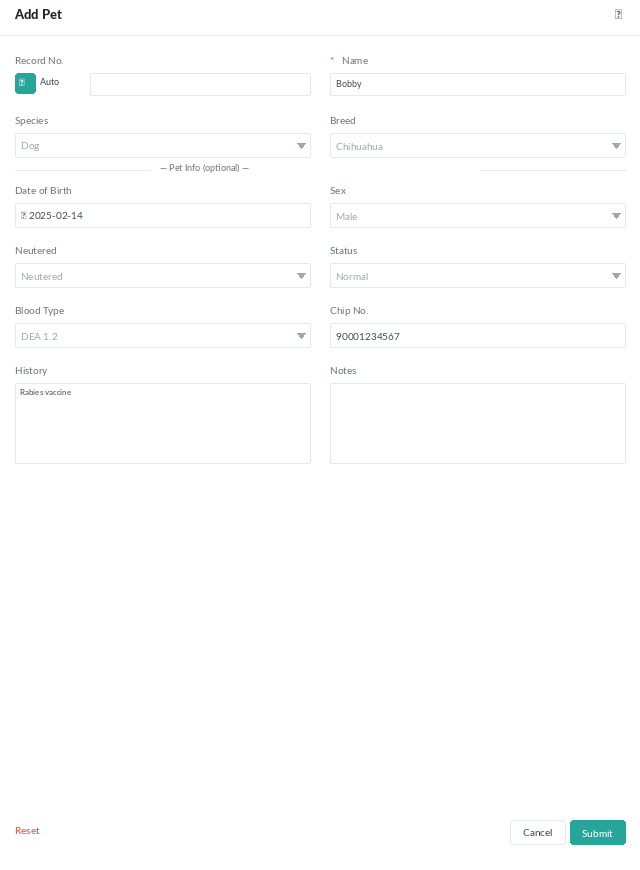
- Click Add Pet to register a new pet for this owner. Fill in the name (required) plus species, breed, DOB, gender, neuter status, blood type, microchip, and medical history (all recommended).
Tip
Use tags consistently across the team — VIP, allergy alert, do-not-discount, and flagged for follow-up — and they’ll appear in the registration and appointment lists. Reception can spot critical context the moment the owner walks in, no need to scroll through notes.