

Vendor Payments: Paying Suppliers & Tracking Invoices
Vendor Payments is the accounts-payable side of Cashier. Use it to log every payment the clinic makes to drug distributors, equipment suppliers, food vendors, and service providers, and to track outstanding invoices that haven’t been settled yet.
How to access
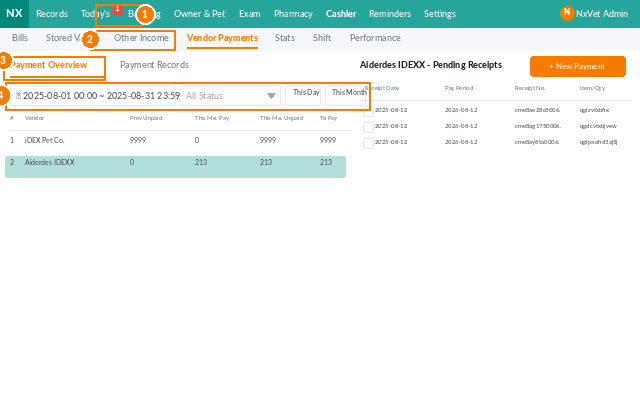
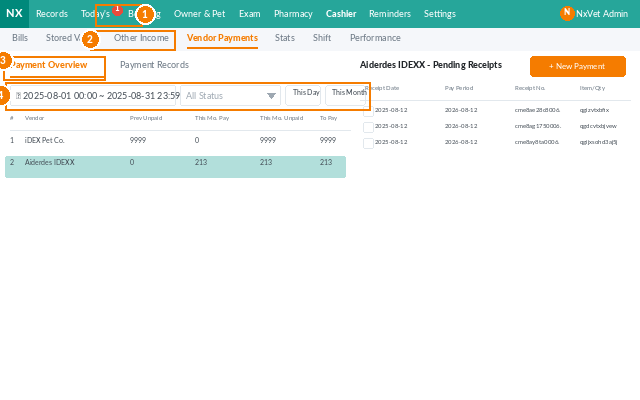
- From the main menu, click Cashier.
- Click the Vendor Payments tab.
- Filter by time period, vendor, payment status, or invoice number.
What each entry shows
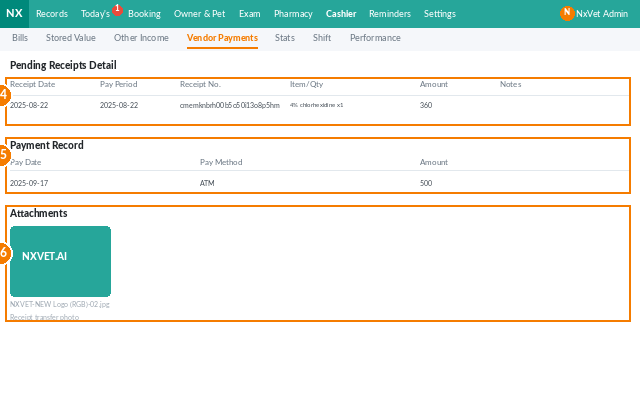
- Invoice date and Due date.
- Vendor — pulled from the vendor list in Settings.
- Amount — total invoiced.
- Status — outstanding, partially paid, paid, overdue.
- Payee staff — who recorded the payment.
Recording a vendor payment
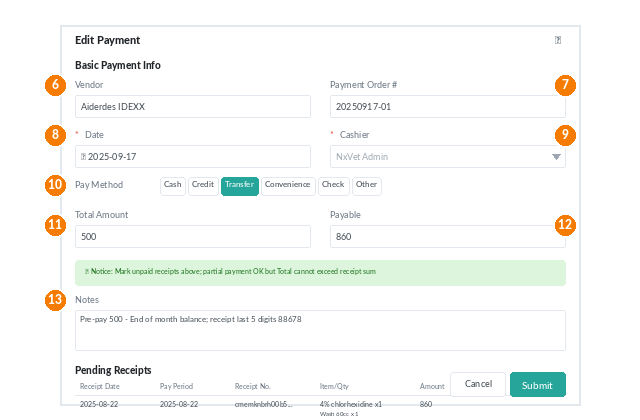
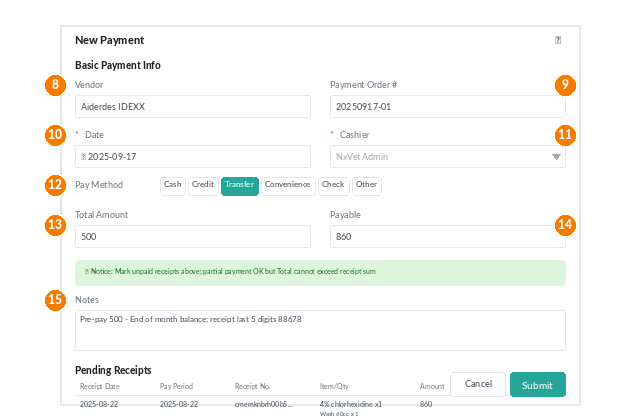
- Click + Add Vendor Payment (or click an outstanding invoice to settle it).
- Fill in:
- Vendor.
- Invoice number.
- Amount (total) and Payment amount (this transaction).
- Payment method — bank transfer, check, cash, credit card.
- Payment date — defaults to today.
- Reference — last 5 digits of the wire, check number, etc.
- Remarks — PO number, delivery date, anything for the audit trail.
- Click Confirm. Partial payments are supported — status updates to Partially paid and the remaining balance carries forward.
Editing or voiding a payment
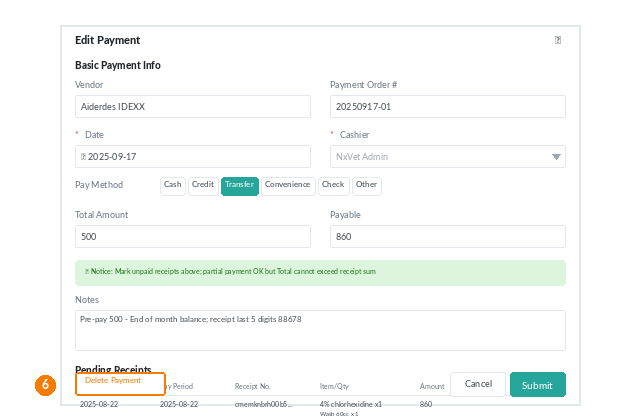
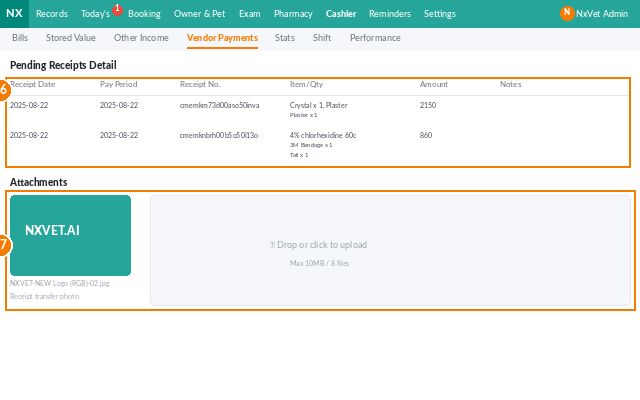
- Click the payment row to edit any field.
- Use Void instead of Delete when reversing — voided payments stay visible in the audit log with a strikethrough.
Tip
Sync vendor records with the clinic’s purchasing system (or maintain a clean Vendor list in NxVet Settings) so every payment ties back to a known supplier. Combined with the Other Expenditure tab for non-vendor costs, the clinic accountant gets a complete view of cash outflow without leaving NxVet.