


Cashier Shift: Daily Close-out and Handover
The Cashier Shift page is where the front desk reconciles cash, card, and other payments at the end of each shift, hands the till over to the next cashier, and locks the day’s transactions for audit. Use it to spot discrepancies early and keep an unbroken paper trail.
How to access
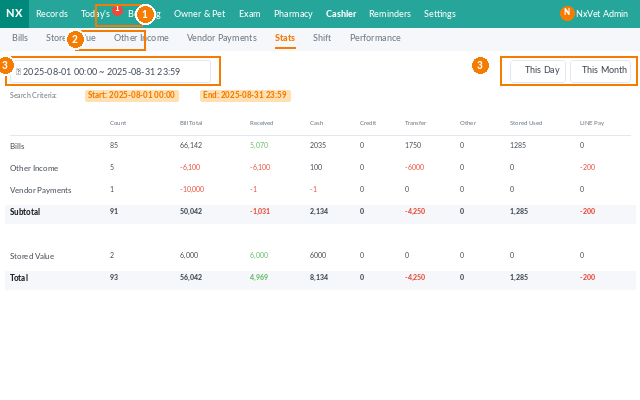
- From the main menu, click Cashier.
- Click the Cashier Shift tab.
- Pick the shift date and shift slot (morning, afternoon, evening, or custom).
Closing out a shift
- Click Start Close-out.
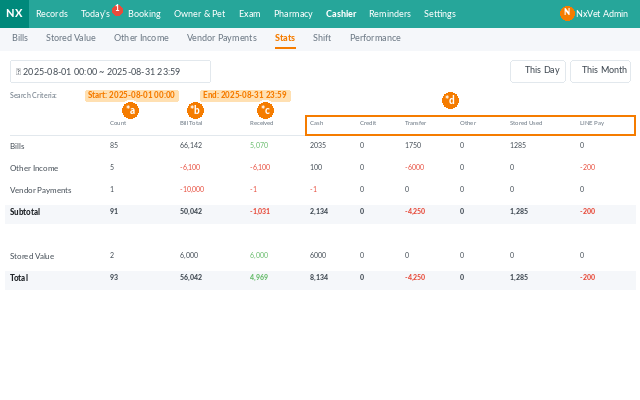
- The system pulls every transaction collected during the shift, grouped by payment method:
- Cash — physical money in the till.
- Credit card — tied to terminal batches.
- ATM / bank transfer.
- Stored value redemptions.
- Other — mobile pay, gift cards, etc.
- Count the physical cash and enter the Actual amount for each method.
- The system shows the Discrepancy (actual minus expected). Discrepancies highlighted in red need an explanation in Remarks before you can confirm.
- Click Confirm Close-out. The shift locks — transactions in that window can’t be edited without an unlock from an admin user.
Handing over to the next cashier
- After close-out, click Handover.
- Pick the Incoming cashier.
- Enter the cash counted into the next shift’s till as the Opening balance.
- Both cashiers sign off on screen. The handover record stays in the audit log.
Reviewing past shifts
- The list shows every closed shift with date, slot, cashier, expected total, actual total, and discrepancy.
- Click any row to see the full breakdown.
- Use the filter for monthly audits by cashier or by date range.
Tip
Even a $1 discrepancy deserves a Remarks entry. Patterns matter — a cashier with frequent small under-counts may need extra training, while a sudden large discrepancy is the kind of thing the audit team needs to be able to find six months later.