

Doctor Duty Roster: Shifts and Time Off
The Doctor Schedule page lets you manage vets’ shifts and time off in one place. You can add one-time slots or recurring schedules, edit or delete individual entries, apply changes to a single day or to the entire recurring series, and reorder how doctors appear on the booking calendar.
How to access
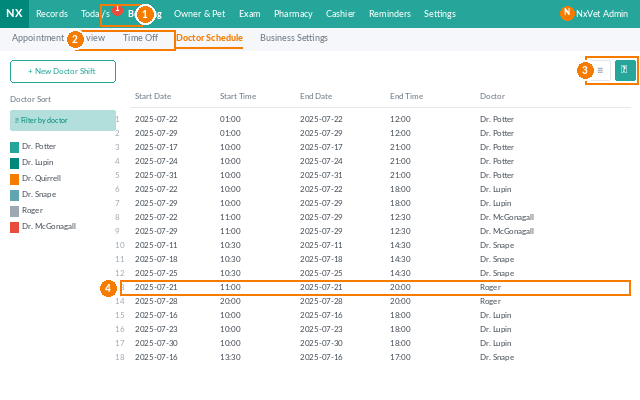
- From the main menu, click Appointments.
- Click Doctor Schedule.
- Use the Calendar view or the List view from the icons on the right.
Adding a one-time shift or time off
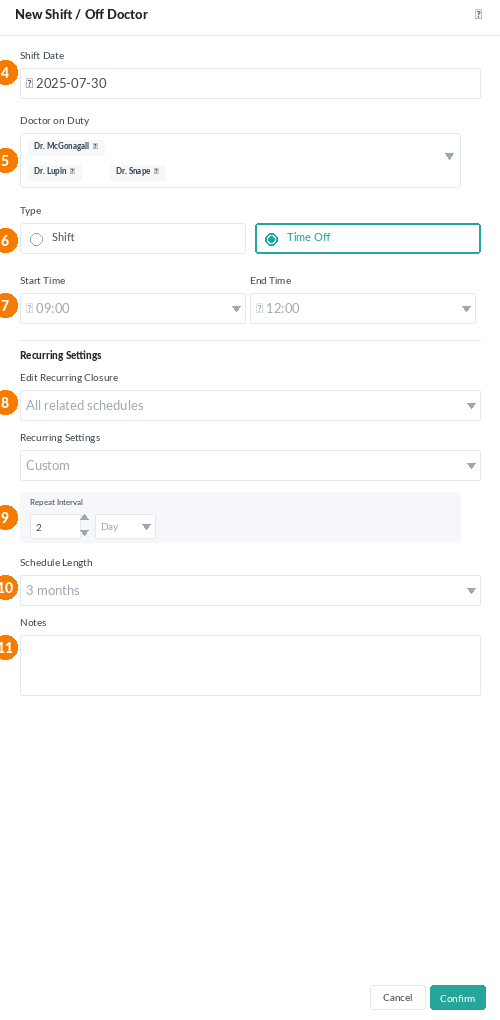
- Click Add Doctor Schedule.
- Pick the Date.
- Choose one or more Doctors on duty (multi-select).
- Set the Type:
- Shift — the doctor is scheduled to work.
- Doctor’s time off — personal leave, vacation, or training.
- Set the Start time and End time.
- Click Confirm.
Adding a recurring shift or time off
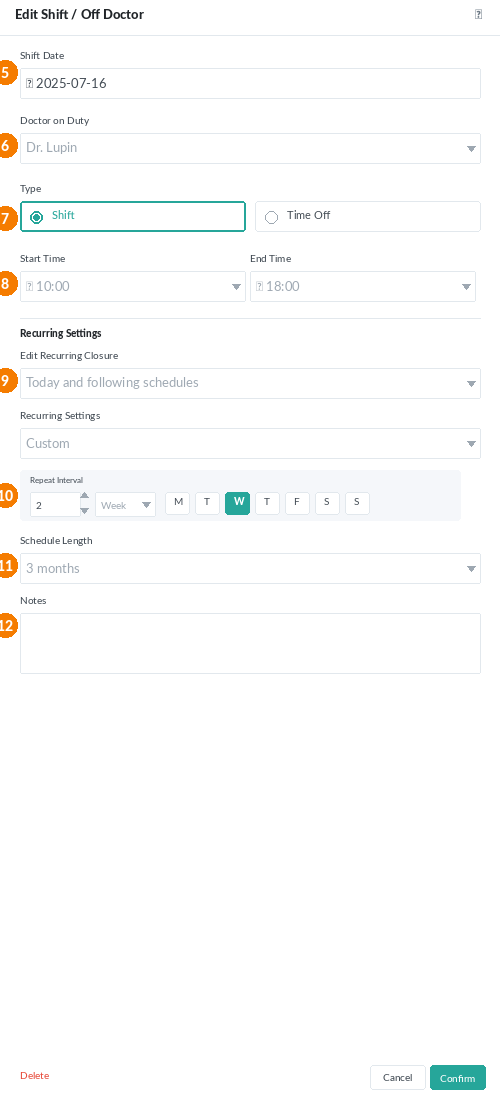
From the same Add form, configure how the slot repeats:
- Daily — every day, including weekends.
- Weekly — same weekday as the starting date (e.g., every Monday).
- Weekdays — Monday through Friday only.
- Custom — pick your own interval (e.g., every two weeks on Wednesday).
Then choose the Pre-schedule length: 1, 3, 6, or 12 months. The system calculates the end date and creates every shift automatically.
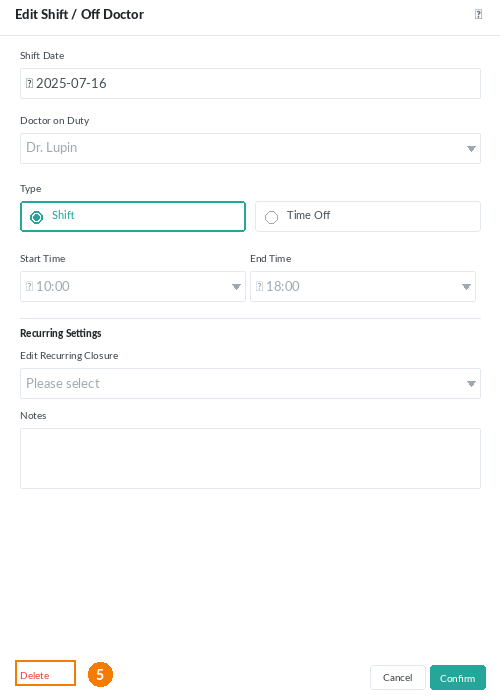
Editing shifts and time off
You can edit any entry from the Calendar view or the List view:
- Click the shift or time-off block.
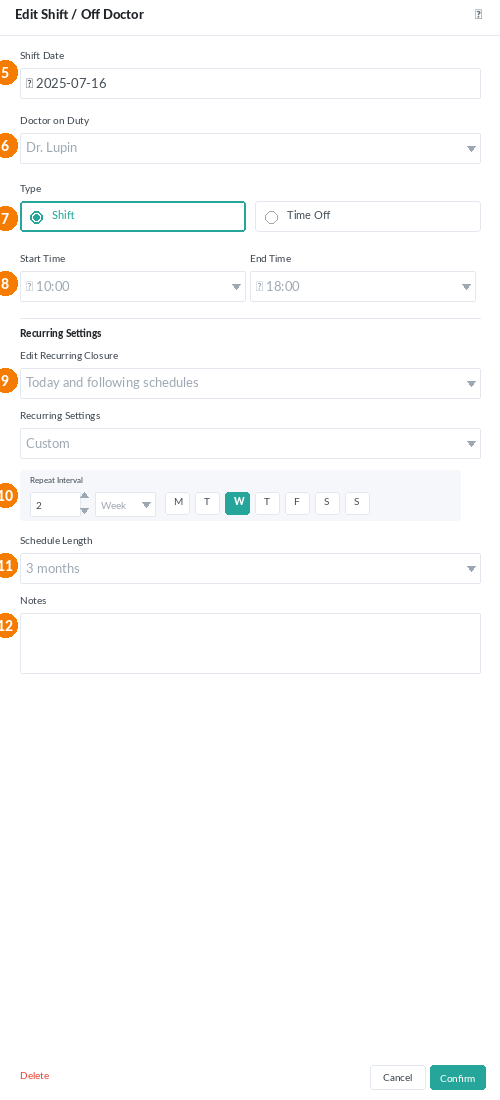
- Adjust the date, doctor, type, times, or remarks.
- Choose how the change applies:
- Today’s schedule — only this one occurrence.
- Today’s schedule and subsequent schedules — today and all future occurrences in this recurring series.
- All relevant schedules — past, today, and future occurrences in the series.
- Click Confirm.
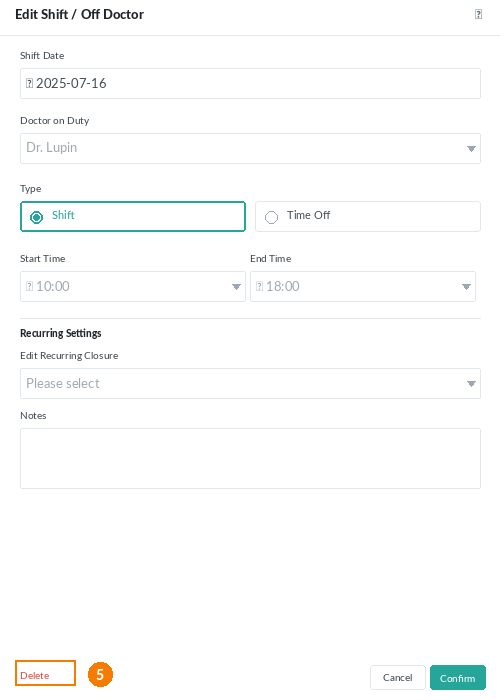
Deleting shifts and time off
- Click the entry you want to remove.
- Click Delete.
- Pick the same three-level scope (this day only / today and forward / all occurrences) and confirm.
Doctor sorting on the calendar
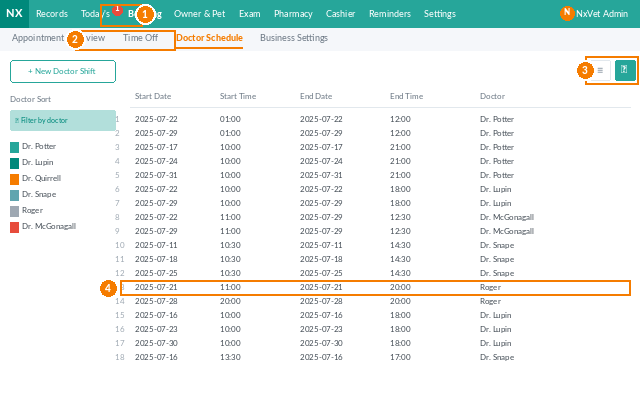
- Click Doctor Sorting.
- Drag a row up or down to the position you want.
- Click Confirm. The new order takes effect on the booking calendar immediately.
Tip
Use Weekly recurrence with a 6- or 12-month horizon when you onboard a new doctor — the calendar fills up automatically and patients can book months ahead. Switch to one-off entries only for sick leave and training.