


Stored Value: Owner Prepaid Balances at the Cashier
The Stored Value view in Cashier shows every owner’s prepaid balance, lets you top up accounts, and tracks every transaction that draws from or adds to the balance. Stored value is the simplest way for the clinic to lock in revenue from regular clients and reduce cash-handling at every visit.
How to access
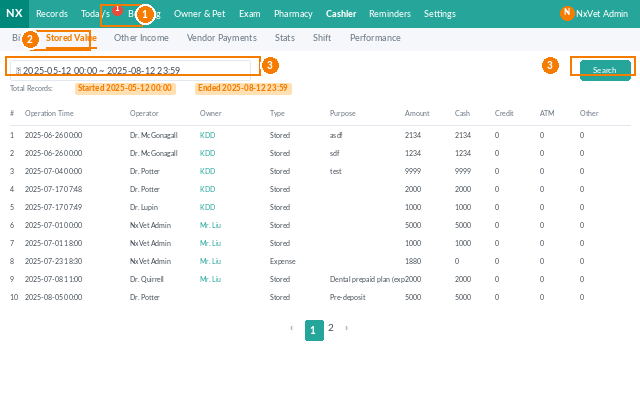
- From the main menu, click Cashier.
- Click the Stored Value tab.
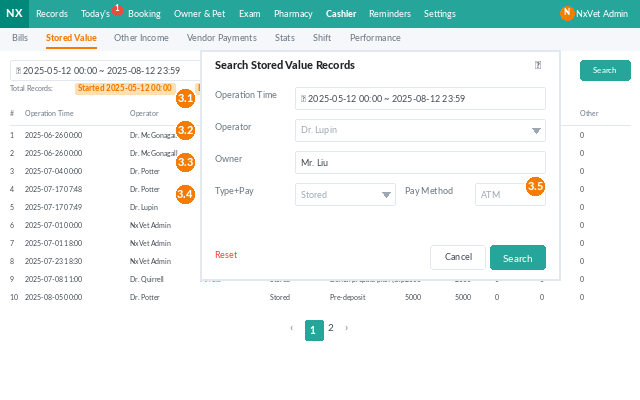
- Search by owner name, phone, or pet to find the right account.
Adding stored value (top-up)
- Click + Stored Value on the owner row.
- Fill in:
- Recipient — the staff member collecting payment.
- Payment method — cash, credit card, ATM, convenience store, check, or other (e.g., mobile pay).
- Payment amount.
- Optional: collection time, purpose (e.g., promo bonus, dedicated treatment), and remarks (last 5 digits of card).
- Click Confirm. The balance updates immediately.
Querying stored-value history
- Click the blue stored-value amount on the owner row.
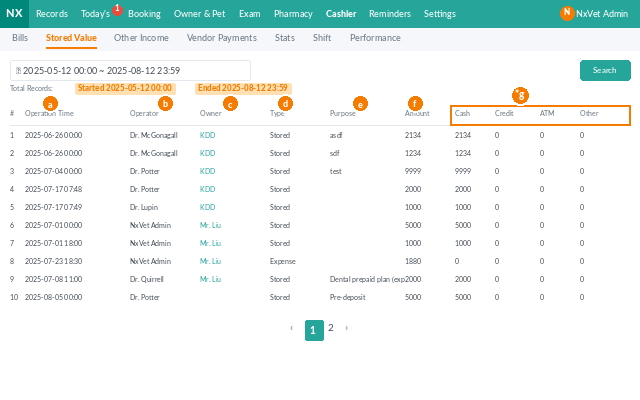
- The list shows every top-up: collection time, recipient, amount, and payment method.
Using stored value at checkout
When settling a bill in the Bills tab, enter an amount in Use Stored Value. Partial use is supported — pair stored value with a credit card or cash to cover the rest. See Billing & Checkout for the full flow.
Tip
Use the Purpose field to categorize promotional top-ups (e.g., “Q1 vaccine campaign”) so the team can later report on what specific campaigns generated stored-value revenue. The actual scope of allowed uses (e.g., only dental, only meds) is set in Settings.